Passwords have been the main way to protect online accounts for decades, and most of us are tired of them. We reuse them, forget them, and get tricked into typing them into fake websites. Passkeys were created to fix those problems. They are already built into many phones, computers and popular websites, and understanding them now will make your accounts safer.
This article explains what passkeys are, how they differ from passwords, and how to start using them without risking being locked out of your accounts.
What Is a Passkey?
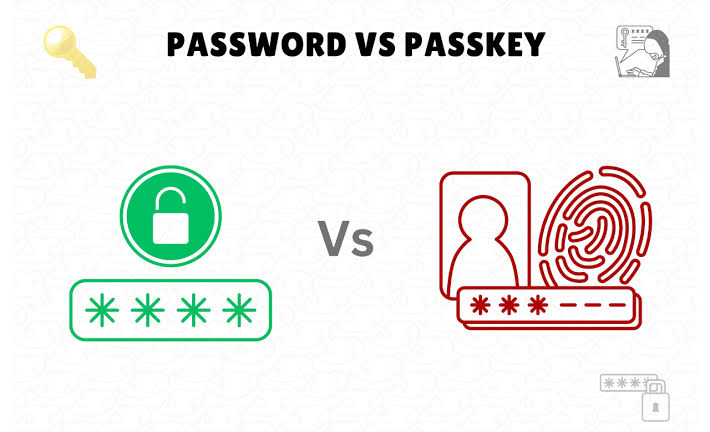
A passkey is a digital login credential that replaces your password. Instead of typing a secret that you have to remember, you confirm that it is really you using something you already use to unlock your device, such as your fingerprint, face or screen PIN. Behind the scenes, your device holds a private key that never leaves it, and the website stores only a matching public key.
Because the website never receives a secret that could be stolen from its servers, a data breach at that company is far less useful to attackers.
How Passkeys Differ From Passwords
They Cannot Be Easily Phished
A passkey only works on the real website it was created for. If you land on a convincing fake page, your device simply will not offer the passkey. That removes one of the most common ways accounts are stolen.
There Is Nothing to Remember
You do not create or memorize anything. You approve the sign-in with your fingerprint, face or PIN, which is usually faster than typing a long password and a code.
They Cannot Be Reused
Every passkey is unique to one account, so there is no risk of one leaked password opening many doors.
Where Can You Use Passkeys?
Support has grown quickly. Major platforms from Apple, Google and Microsoft support passkeys, and many popular services let you add one in their security settings. Several password managers can also store and sync passkeys across your devices. Support still varies by site, so look for options named “passkey”, “sign in with a passkey” or “security key” in your account settings.
How to Switch to Passkeys Step by Step
- Update your phone, computer and browser so they support the latest sign-in features.
- Make sure your device is locked with a screen lock, fingerprint or face recognition.
- Sign in to an important account, such as your email, and open the security or sign-in settings.
- Choose the option to create a passkey and follow the prompts.
- Sign out and sign back in using the passkey to confirm it works.
- Repeat for other accounts that support it, starting with the ones that matter most.
Do Not Delete Your Password Too Soon
Keep your existing password until you have tested your passkey on every device you use. Some older apps and devices still need a password, and you should have a backup way into your account. Make sure your recovery email and phone number are up to date as well.
What Happens If You Lose Your Phone?
This is the question most people ask first. If your passkeys are stored in a sync service, such as your phone maker account or a password manager, you can restore them on a new device after verifying your identity. For this reason, protect the main account that syncs your passkeys with a strong, unique method and keep recovery options current.
Are Passkeys Perfect?
No security tool is perfect. Passkeys do not protect you if someone has access to your unlocked device, so a strong screen lock matters. Moving to a new ecosystem, such as switching phone brands, can also take extra steps. Even so, for most people they are a major improvement over passwords alone.
Tips for a Smooth Transition
- Start with your email and main cloud accounts, since they control resets for everything else.
- Use a reputable password manager for the sites that still require passwords.
- Keep your devices updated.
- Turn on extra sign-in alerts so you know about unusual activity.
For more everyday technology explainers, visit our Tech section. If you run a company, you may also like our cybersecurity checklist for small businesses.
Final Thoughts
Passkeys make logging in simpler and safer at the same time, which is rare in security. You do not have to switch everything overnight. Add a passkey to one or two important accounts this week, see how it feels, and expand from there. Over time, you will type far fewer passwords and worry far less about fake login pages.